

What Rex does
Rex is XBuild’s assistant for questions and tasks across your projects and the tools you already use, such as your CRM, accounting, and email. It can link the sources behind its answers, and it prepares changes for your review according to your mode and your company’s permissions.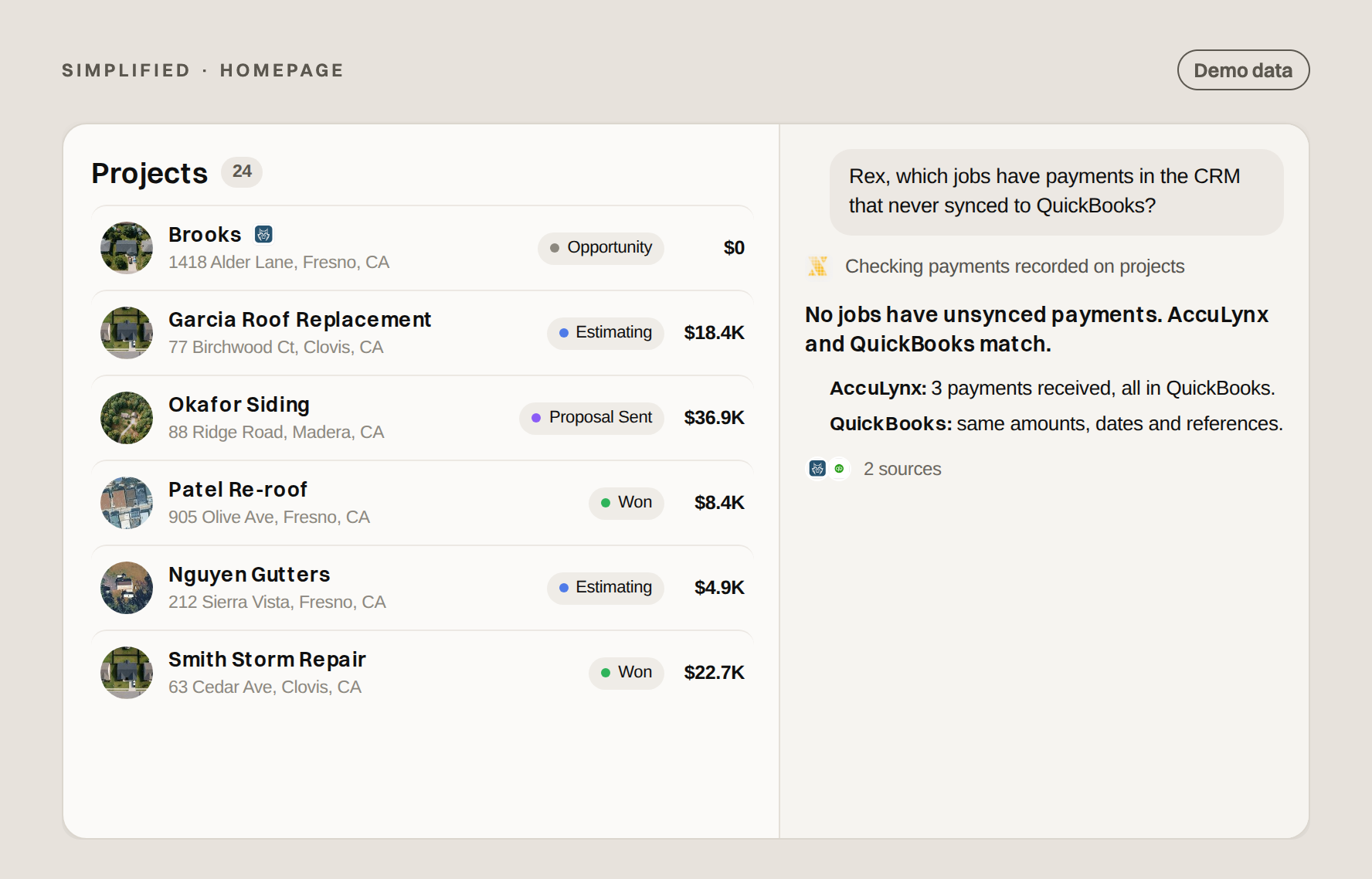
Illustrative product example with demo data; not a customer result.
Who can use Rex
Current plans include Rex; see Plan comparison. Whether you see it also depends on:- Rex being enabled for the selected Location
- your role: Admin and Standard members can use Rex, and Limited members can’t (Members and roles)
- your company’s Rex settings and rollout for your account
Open Rex
- Click Ask Rex in the page header to open the Rex panel next to your work.
- Use the composer on Home to start from a question.
- Click New conversation to start fresh without earlier context.
Give Rex context
On supported pages, type @ in the composer to pick records, views, or connectors for Rex to use. Upload files separately. Specific context gives better answers than a broad request.Check the sources
Review the source links Rex provides before acting on a number. If an answer doesn’t include them, ask Rex which sources it used. A connector marked as connected doesn’t mean every record is complete or current, so read any notes about missing data and check for gaps. See Ask Rex questions.Ask and Apply
Rex has two modes. Ask waits for your confirmation before changes. Apply lets Rex make internal changes your company allows, while external actions such as sending email still need your confirmation. See Act with Rex.If Rex is missing
- Check the Location switcher. You may be in a Location where Rex isn’t enabled.
- Confirm your role is Admin or Standard.
- Ask an Administrator to check Rex settings in Settings → Connections.
- If it’s still missing, contact XBuild Support.